Discovery
Table of Contents
Discovery
Quick references: task-first command sheet · detailed command reference · exam navigator
Overview
Discovery decision loop Question → smallest useful LDAP result → interpretation → next proof. Record the current identity, domain, DC, scope, and objective first. Use BloodHound to explore collected relationships; it does not prove that a ticket, GPO setting, or local right is effective on a host.
Diagram source
flowchart LR
  A[What must I learn?] --> B[Bound LDAP scope, filter and attributes]
  B --> C[Inspect returned objects and Beacon log]
  C --> D[BOFHound converts logs to JSON]
  D --> E[BloodHound shows candidate paths]
  E --> F{What edge is missing?}
  F -->|GPO setting| G[Read relevant SYSVOL policy file]
  F -->|WMI condition| H[Check GPO filter and target OS]
  F -->|ACL / group| I[Query exact object, SID or group chain]
  G --> J[Verify policy application and actual right]
  H --> J
  I --> J
Keep the layers separate: ldapsearch collects directory facts; Cobalt Strike logs preserve its raw output; BOFHound parses that output into JSON; BloodHound visualizes the graph. SYSVOL policy files can supply settings that LDAP metadata alone cannot. This was the point of the CONTOSO lab, not a claim that we completed an exam path.
If stuck: identify the named user or host tied to the objective, then ask one concrete question: group membership, host ownership, GPO scope, local administrator group, delegation flag, or ACL. Query that object or a bounded set. A graph edge is a lead until the relevant identity, policy application, and actual authorization are confirmed.
Discovery collects information about users, groups, computers, policies, and relationships that can inform later, in-scope decisions. After credential access or user impersonation, it helps answer which resources the current identity may be authorized to use.
BloodHound visualizes identity relationships and candidate paths. Collectors such as SharpHound, AzureHound, and BloodHound.py gather source data. Collection methods can produce distinct LDAP query patterns, session-enumeration traffic, and large or slow searches. The detection thresholds and logs vary by environment; no collection approach is guaranteed quiet.
Course approach: collect bounded LDAP data, then graph it
The CRTO lesson's alternative workflow uses targeted ldapsearch queries, preserves the raw Beacon logs, parses the log output with BOFHound, then imports the generated JSON into BloodHound CE. The lab's purpose was to use the graph to investigate a GPO relationship, then inspect the actual GptTmpl.inf in SYSVOL because LDAP metadata alone did not reveal the Restricted Groups setting.
LDAP query -> Beacon log -> copy log directory -> BOFHound JSON -> BloodHound graph
                                                        |
                                                        +-> inspect missing policy data in SYSVOL
The practical record is in the discovery lab below: import the JSON, inspect the candidate GPO and affected computers, download the specific policy file, interpret its SIDs, and add a graph edge only when the evidence supports it. BloodHound edges are a map of collected facts and inferences; confirm effective policy and authorization separately.
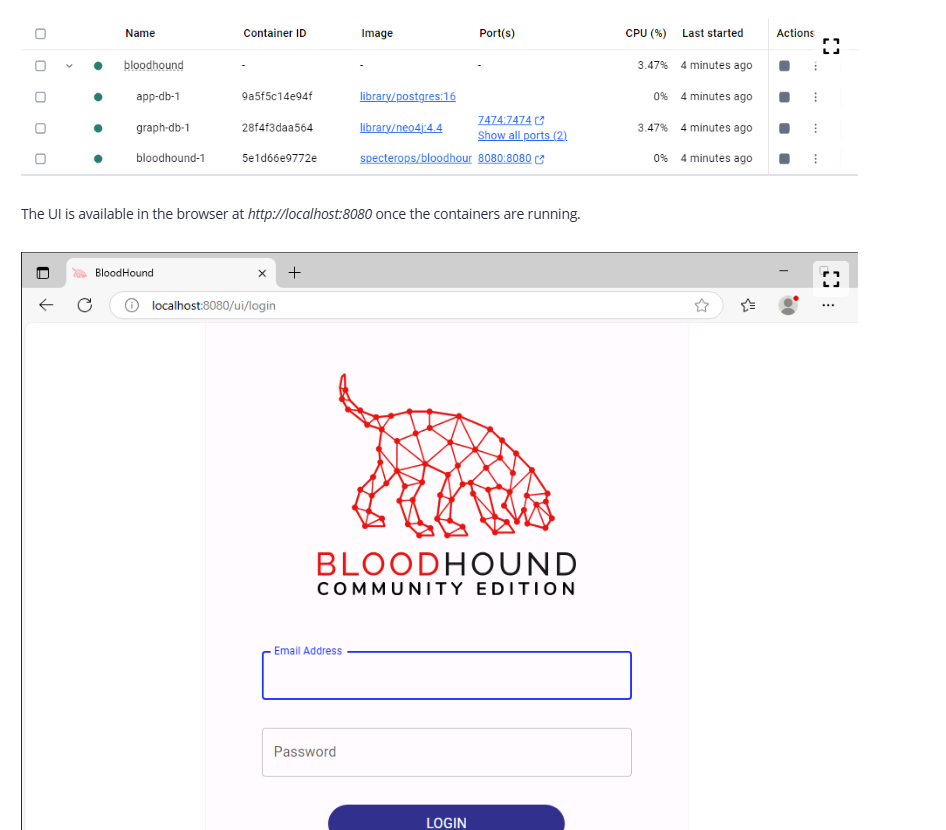
Operational note: keep collection within the authorized scope and objective. Small, relevant queries can reduce unnecessary directory load; this is an efficiency and safety practice, not a way to evade detection. Use BloodHound as an analysis tool after collection, not as proof that a path will work.
LDAP discovery
LDAP is an industry standard protocol for accessing directory service information across a network. It requires a client to establish a session with an LDAP server (i.e. domain controller) before it can submit queries to it - this would be on TCP port 389 for LDAP or 636 for LDAPS. Sessions are typically authenticated using the current domain context of the caller or by using explicit domain credentials.
Each 'object' in a directory has an associated objectClass which defines the types of attributes it can have. There are hundreds of classes, but some common ones include:
computer
Represents a computer account in the domain.
domain
Contains information about a domain.
group
Stores a list of user names, used to apply security principals to resources.
person
Contains information about a user.
groupPolicyContainer
A container for storing Group Policy Objects.
organizationalUnit
A container for storing users, computers, and other account objects.
trustedDomain
An object that represents a domain trust relationship.
Querying LDAP
Annoyingly, some objects have an objectClass that you wouldn't necessarily expect, which can make them unsuitable as a basis for your search in some circumstances. For example, computer accounts actually have the object classes of 'person', 'organizationalPerson', 'user', and 'computer'. So searching for all 'person' or 'user' objects will actually return computers as well.
Indexes
As you typically find in most types of database, directory information is indexed by different fields to make searches more efficient. Searching by an indexed field will be much faster than a non-indexed field. Microsoft have documented which directory attributes are indexed, so we should use these where possible. This can also be relevant to OPSEC which is discussed in more detail further down this page.
Filters
Using LDAP to search for objects requires you to provide a filter that defines the criteria of the search. For example, to search for all user accounts, we could use the sAMAccountType attribute to search for objects that have a type of SAM_NORMAL_USER_ACCOUNT. This is 0x30000000 in hex, or 805306368 in decimal.
beacon> ldapsearch (samAccountType=805306368)
A user object contains attributes used to describe the user such as their name, a description, domain SID, logon count, UAC flags, last logon time, group membership, and so on. There are also generic attributes that appear on every object, regardless of their class, such as the distinguishedName and objectGUID.
Binding to 10.10.120.1
[*] Distinguished name: DC=contoso,DC=com
[*] targeting DC: \lon-dc-1.contoso.com
[*] Filter: (sAMAccountType=805306368)
[*] Scope of search value: 3
[*] Returning specific attribute(s): *
objectClass: top, person, organizationalPerson, user
cn: Administrator
description: Built-in account for administering the computer/domain
distinguishedName: CN=Administrator,CN=Users,DC=contoso,DC=com
instanceType: 4
whenCreated: 20250124135010.0Z
whenChanged: 20250303132351.0Z
uSNCreated: 8196
memberOf: CN=Group Policy Creator Owners,CN=Users,DC=contoso,DC=com, CN=Domain Admins,CN=Users,DC=contoso,DC=com, CN=Enterprise Admins,CN=Users,DC=contoso,DC=com, CN=Schema Admins,CN=Users,DC=contoso,DC=com, CN=Administrators,CN=Builtin,DC=contoso,DC=com
uSNChanged: 36919
name: Administrator
objectGUID: f1f979c4-11a0-4929-8147-c53305544d1c
userAccountControl: 66048
badPwdCount: 0
codePage: 0
countryCode: 0
badPasswordTime: 0
lastLogoff: 0
lastLogon: 133861646754853919
logonHours: ////////////////////////////
pwdLastSet: 133821991894459748
primaryGroupID: 513
objectSid: S-1-5-21-3926355307-1661546229-813047887-500
adminCount: 1
accountExpires: 0
logonCount: 40
sAMAccountName: Administrator
sAMAccountType: 805306368
objectCategory: CN=Person,CN=Schema,CN=Configuration,DC=contoso,DC=com
isCriticalSystemObject: TRUE
dSCorePropagationData: 20250124140605.0Z, 20250124140605.0Z, 20250124135054.0Z, 16010101181216.0Z
lastLogonTimestamp: 133854817944673761
msDS-SupportedEncryptionTypes: 0
A query can be tuned to return a smaller subset of results by including 'and' (represented by &) and/or 'or' (represented by |) criteria in the filter. For example, the following returns every object that has a samAccountType of 805306368 and whose adminCount attribute is set to 1.
beacon> ldapsearch (&(samAccountType=805306368)(adminCount=1))
This next command returns every object that has a samAccountType of 805306368 and whose description contains the string 'admin' or whose samAccountName (i.e. username) contains the string 'adm'.
beacon> ldapsearch (&(samAccountType=805306368)(|(description=admin)(samaccountname=adm)))
Objects can also be excluded by using a 'not' criteria (represented by !). For example, we could tune the previous query to not return the krbtgt account:
beacon> ldapsearch (&(samAccountType=805306368)(adminCount=1)(!(name=krbtgt)))
Notice how the filter criteria, &, |, and !, always appear at the beginning of the grouping, i.e. (&(samAccountType=805306368)(adminCount=1)) rather than ((samAccountType=805306368)&(adminCount=1)).
Attributes
In all of these examples, the queries will return every attribute for the objects, which may be more information than we need. Use the --attributes parameter in ldapsearch to control which attributes to return. For example, if we only wanted the name and group memberships, we could do:
beacon> ldapsearch (&(samAccountType=805306368)(adminCount=1)) --attributes name,memberof
memberOf: CN=Group Policy Creator Owners,CN=Users,DC=contoso,DC=com, CN=Domain Admins,CN=Users,DC=contoso,DC=com, CN=Enterprise Admins,CN=Users,DC=contoso,DC=com, CN=Schema Admins,CN=Users,DC=contoso,DC=com, CN=Administrators,CN=Builtin,DC=contoso,DC=com
name: Administrator
memberOf: CN=Denied RODC Password Replication Group,CN=Users,DC=contoso,DC=com
name: krbtgt
memberOf: CN=Domain Admins,CN=Users,DC=contoso,DC=com
name: Dean York
The ldapsearch BOF also allows you to read the security descriptor (i.e ACL) of an object by appending ntsecuritydescriptor to the list of attributes. It's output as a long base64 string that BOFHound can parse and decode.
beacon> ldapsearch (&(samAccountType=805306368)(adminCount=1)) --attributes name,memberof,ntsecuritydescriptor
memberOf: CN=Domain Admins,CN=Users,DC=contoso,DC=com
nTSecurityDescriptor: AQAEn[...snip...]AIAAA==
name: Dean York
To return every attribute and the security descriptor, use *,ntsecuritydescriptor.
Returning the security descriptor is essential if you want BloodHound to identify ACL-based attack paths.
Bitwise Filters
In addition to simple and's, or's, and not's, LDAP supports the use of bitwise operators by way of the following OIDs (object identifiers):
1.2.840.113556.1.4.803 for LDAP_MATCHING_RULE_BIT_AND.
1.2.840.113556.1.4.804 for LDAP_MATCHING_RULE_BIT_OR.
1.2.840.113556.1.4.1941 for LDAP_MATCHING_RULE_IN_CHAIN.
The bitwise AND is particularly useful for queries that target attributes such as userAccountControl. This attribute is a set of bitwise flags, so performing a bitwise AND allows you to query whether a particular flag is set or not. For example, TRUSTED_FOR_DELEGATION is a flag that gets set on a computer account when it's configured for unconstrained delegation. We could find every computer with this configuration by performing a bitwise AND with the value 524288.
beacon> ldapsearch (&(samAccountType=805306369)(userAccountControl:1.2.840.113556.1.4.803:=524288)) --attributes samaccountname
sAMAccountName: LON-DC-1$
The LDAP_MATCHING_RULE_IN_CHAIN OID provides a method of querying the ancestry of an object, which becomes useful when needing to unroll groups of groups. Consider a scenario where you query a domain group and find that another domain group is a member; you query that group and find two more groups as members. Depending on the depth, querying each one manually can quickly get out of hand. Not only is it laborious, it's prone to error and generates unnecessary LDAP traffic.
beacon> ldapsearch "(memberof:1.2.840.113556.1.4.1941:=CN=Domain Admins,CN=Users,DC=contoso,DC=com)" --attributes samaccountname
sAMAccountName: Administrator
sAMAccountName: dyork
sAMAccountName: Server Admins
sAMAccountName: Workstation Admins
sAMAccountName: Domain Users
The memberOf:1.2.840.113556.1.4.1941:=<group DN> filter returns objects directly or transitively in the named group. It expands nested membership; it does not return the group's ancestors. The course result is specific to its domain, so verify every nested link before claiming that all domain users have a right.
OPSEC
In addition to the issue of signatured LDAP queries, a pain point even for custom data collection, is tripping a detection that looks for expensive, inefficient, or slow queries. In each case, the trigger threshold is configurable by the organisation, so there are no definitive values and they will vary based on the size of the domain.
Expensive Search Results Threshold
These are queries that return more results than the given threshold. You could trigger these using extremely large pulls in a single query, like (objectClass=*).
Search Time Threshold
These are queries that exceed the configured runtime threshold. Search scope, filter selectivity, indexing, requested attributes, server load and paging can all affect time. Requesting every attribute plus the security descriptor across many objects can be costly; request only what answers the current question.
Inefficient Search Results Threshold
The course illustrates an inefficient query as one that returns a small fraction of the objects visited, when enough objects were visited. The cited 10% ratio is an example from the course; the organization's diagnostic configuration and detection logic determine what is actually logged or alerted. A selective filter can still scan many objects.
For example, an SPN-bearing-user filter may visit many user objects while returning only a few. The returned-to-visited ratio is one possible diagnostic, not proof that the query is harmless or that a fixed alert threshold applies.
A broader user inventory with explicit attributes can sometimes avoid a very selective, costly filter, but it may exceed an expensive-results threshold or collect unnecessary data. Compare scope, indexes, returned count, requested attributes, and the actual monitoring configuration; there is no universally quiet query.
BOFHound
BOFHound workflow
Contrary to how it sounds, BOFHound is not a BOF. It's a Python script that is capable of parsing the raw output of the ldapsearch BOF (and a few other tools).
Query methodology
The following two full-attribute ACL searches are copied from the course lab. They are useful for reproducing that controlled exercise but are potentially high-cost collection. In an exam, decide the scope and needed attributes from the current objective and ROE before running either one.
The aim of the game is to use small, efficient queries to build up a picture of the environment over several days or weeks. We could start off by enumerating some basic information about the domain, computers, users, groups, OUs, and GPOs.
beacon> ldapsearch (|(objectClass=domain)(objectClass=organizationalUnit)(objectClass=groupPolicyContainer)) --attributes *,ntsecuritydescriptor
beacon> ldapsearch (|(samAccountType=805306368)(samAccountType=805306369)(samAccountType=268435456)) --attributes *,ntsecuritydescriptor
BOFHound is designed to parse the raw cobalt strike logs stored on the team server, so we first need to copy them across to our desktop.
attacker@DESKTOP-FGSTPS7:/mnt/c/Users/Attacker/Desktop$ scp -r attacker@10.0.0.5:/opt/cobaltstrike/logs .
Then run bofhound against the copied log directory.
attacker@DESKTOP-FGSTPS7:/mnt/c/Users/Attacker/Desktop$ bofhound -i logs/
attacker@DESKTOP-FGSTPS7:/mnt/c/Users/Attacker/Desktop$ ls -l
-rwxrwxrwx 1 attacker attacker 16072 Mar 12 12:06 computers_20250312_120659.json
-rwxrwxrwx 1 attacker attacker 1803 Mar 12 12:06 domains_20250312_120659.json
-rwxrwxrwx 1 attacker attacker 13792 Mar 12 12:06 gpos_20250312_120659.json
-rwxrwxrwx 1 attacker attacker 34772 Mar 12 12:06 groups_20250312_120659.json
drwxrwxrwx 1 attacker attacker 4096 Mar 12 12:06 logs
-rwxrwxrwx 1 attacker attacker 5690 Mar 12 12:06 ous_20250312_120659.json
-rwxrwxrwx 1 attacker attacker 21889 Mar 12 12:06 users_20250312_120659.json
After logging into the BloodHound UI, navigate to Administration > File Ingest and upload the parsed JSON files. You can then start querying the data once it's been processed. For example, find all kerberoastable users with the cypher query:
MATCH (n:User) WHERE n.hasspn=true RETURN n
Every object that is only represented by a SID, or 'no name or id' means that we haven't collected any data on it yet. You would then go back to ldapsearch and query for data on those objects. You can target a specific object using (objectsid=[SID]) --attributes *,ntsecuritydescriptor.
Restricted groups
One piece of data that can't be collected using LDAP alone, is restricted group data. These are local group memberships that are defined and applied via GPOs, and without this information, BloodHound could be missing a lot of edges. For example, it will show a Server Admins GPO that is linked to a Member Servers OU, of which there are several members. However, LDAP cannot tell us anything about the actual policies that this GPO applies to the computers.
One way to figure this out is to browse to the gPCFileSysPath of the GPO in SYSVOL, and have a look at the actual policy files inside the container. Different policies are applied using different file formats, such as .pol, .xml, and .inf. It really is a mish-mash.
Restricted group data is defined in a file called GptTmpl.inf inside the Machine's SecEdit folder, e.g. \\contoso.com\SysVol\contoso.com\Policies\{7A04B429-D293-45E8-A7BA-D630415B3D6A}\Machine\Microsoft\Windows NT\SecEdit\GptTmpl.inf.
Downloading and opening this in a text editor will show something like this:
Why would we want to do this we would want to do this because we want to try to understand the different relations of the objects better specifically the restricted groups which are local group memberships that are defined and applied by via Gpos
Downloading and opening this in a text editor will show something like this:
[Unicode]
Unicode=yes
[Version]
signature="$CHICAGO$"
Revision=1
[Group Membership]
*S-1-5-21-3926355307-1661546229-813047887-1107__Memberof = *S-1-5-32-544
*S-1-5-21-3926355307-1661546229-813047887-1107__Members =
This is telling us that a domain group of SID S-1-5-21-3926355307-1661546229-813047887-1107 is a member of a local group of SID S-1-5-32-544. We can search for the domain group SID in BloodHound to find that it's a Server Admins group.
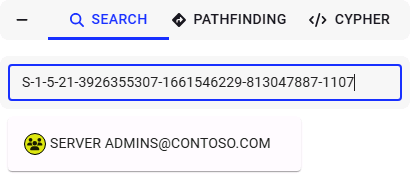
And we can simply lookup the local SID in Microsoft's documentation, where S-1-5-32-544 is the built-in Administrators group. This means that any member of the Server Admins group will be a local administrator on computers in the Member Servers OU.
These paths can be added to BloodHound manually using cypher query.
MATCH (x:Computer{objectid:'S-1-5-21-3926355307-1661546229-813047887-1110'})
MATCH (y:Group{objectid:'S-1-5-21-3926355307-1661546229-813047887-1107'})
MERGE (y)-[:AdminTo]->(x)
Where:
S-1-5-21-3926355307-1661546229-813047887-1110 is the SID for lon-ws-1.
S-1-5-21-3926355307-1661546229-813047887-1107 is the SID for the Server Admins group.
Another thing that we need to know is W filters that are important consideration when analyzing GP OS For example GPO may apply do an entire workstation Oh you oh you means what What is all you mean But Windows Management Instrumentation can restrict its application to computers with a certain
WMI Filters
Despite regarding OU umm I feel like its not super important right now when it becomes more important we will take note of it
WMI filters are an important consideration when analysing GPOs. They allow for additional criteria to be set on GPO application through a specific WMI query. For example, a GPO may apply to an entire Workstations OU, but a WMI filter can restrict its application to computers with a certain Windows version, specific computer names, and so on. Understanding WMI filters is crucial because they can result in situations where a GPO seemingly applies to one or more computers based on its OU membership, yet they're actually excluded due to a filter.
The course notes that its BloodHound version did not evaluate WMI filters in the graph. Treat this as version-dependent: inspect gPCWQLFilter and the target computer rather than assuming any graph has already evaluated the filter.
WMI filters and GPOs operate on a one-to-many relationship. A GPO can only have one WMI filter applied at a time, whereas a WMI filter can be applied to multiple GPOs.
A WMI filter is applied to a GPO by modifying the GPO's gPCWQLFilter attribute.
beacon> ldapsearch (objectClass=groupPolicyContainer) --attributes displayname,gPCWQLFilter
displayName: AppLocker
gPCWQLFilter: [contoso.com;{E91C83FB-ADBF-49D5-9E93-0AD41E05F411};0]
The above tells us that a WMI filter with the GUID {E91C83FB-ADBF-49D5-9E93-0AD41E05F411} is being applied to the AppLocker GPO. The WMI filters themselves are stored in the CN=System,CN=WmiPolicy,CN=SOM container, and are of class msWMI-Som. The display name is stored in the msWMI-Name attribute and actual content of the filter in msWMI-Parm2.
beacon> ldapsearch (objectClass=msWMI-Som) --attributes name,msWMI-Name,msWMI-Parm2 --dn "CN=SOM,CN=WMIPolicy,CN=System,DC=contoso,DC=com"
Binding to 10.10.120.1
[*] Distinguished name: CN=SOM,CN=WMIPolicy,CN=System,DC=contoso,DC=com
[*] targeting DC: \lon-dc-1.contoso.com
[*] Filter: (objectClass=msWMI-Som)
[*] Scope of search value: 3
[*] Returning specific attribute(s): name,msWMI-Name,msWMI-Parm2
name: {E91C83FB-ADBF-49D5-9E93-0AD41E05F411}
msWMI-Name: Windows 10+
msWMI-Parm2: 1;3;10;61;WQL;root\CIMv2;SELECT * from Win32_OperatingSystem WHERE Version like "10.%";
Where:
1;3;10 is a constant value, no idea what it's for 😅
61 is the length of the WMI query.
WQL is the query language (WMI Query Language).
root\CIMv2 is the query namespace.
SELECT * from Win32_OperatingSystem WHERE Version like "10.%"
is the query itself (61 characters).
This means that if this GPO were to linked to an OU that contained computers running Windows 7, Vista, 8, etc, then it would not be applied to them because they wouldn't match the WMI query in the filter.
Discovery lab
Lab goal: map part of the CONTOSO domain, then determine whether the Workstation Admins GPO defines a local Administrators relationship for the two named workstations. This is a guided lab result, not a live exam finding.
OPSEC gate before LDAP collection The course's two
*,ntsecuritydescriptorqueries below are broad lab examples. They return many attributes and ACLs across multiple object types. Do not make them a default exam sweep. Choose a bounded search base, filter and explicit attributes for the question at hand; requestnTSecurityDescriptoronly when ACL evidence is needed. Smaller queries still create directory telemetry and are not guaranteed quiet. Thresholds and logging vary by organization.
1. Collect and parse directory data
In the authorized lab Beacon, record its current identity, domain, DC, and the specific question. Ensure the
ldapsearchadd-on is loaded;Unknown commandmeans the add-on is unavailable, not that the domain has no matching objects.The course lab enumerated domain/OUs/GPOs, then users/computers/groups with these two commands. Run each separately if replaying that lab:
ldapsearch (|(objectClass=domain)(objectClass=organizationalUnit)(objectClass=groupPolicyContainer)) --attributes *,ntsecuritydescriptor
ldapsearch (|(samAccountType=805306368)(samAccountType=805306369)(samAccountType=268435456)) --attributes *,ntsecuritydescriptor
For a narrower question, first select just the names and paths you need, such as
ldapsearch (objectClass=groupPolicyContainer) --attributes displayName,gPCFileSysPath,gPCWQLFilter. Add ACL data for a specific GPO only if the rights question requires it.sAMAccountType=805306368selects normal user accounts and805306369selects computer accounts;objectClass=useralone also includes computers.adminCount=1is a lead about protected-account history, not proof of current privilege.On the attacker desktop Ubuntu/WSL terminal, copy the raw Beacon logs from the lab Team Server. Replace the example host with the current team-server address; do not put its password into notes:
cd /mnt/c/Users/Attacker/Desktop
scp -r attacker@<TEAM_SERVER>:/opt/cobaltstrike/logs .
bofhound -i logs/
Expected evidence: BOFHound creates JSON files for the object types it parsed (such as users, computers, groups, GPOs and OUs). A missing node or SID-only node means collection may be incomplete; query the exact object or SID rather than assuming it does not exist. Check that the copied log directory is from this lab and handle the resulting copies as engagement data.
2. Explore the candidate GPO path
Start the lab's BloodHound CE containers in Docker Desktop, then open its local UI. Use the credentials supplied for the current lab; do not rely on a password copied from an old screenshot.
In Administration → File Ingest, upload the BOFHound JSON files and wait for processing to complete.
In Explore, find GPOs with:
MATCH (n:GPO) RETURN nInspect Workstation Admins in the guided lab. Record its
gPCFileSysPath(orGpcpathshown by the UI), linked/affected OU and candidate computer object IDs. The graph shows GPO metadata and a possible scope; a link alone does not reveal its policy contents or prove that it applied to a computer.
3. Read the Restricted Groups setting
Use the actual GPO path recorded above. In this lab it led to a SYSVOL
Machine\Microsoft\Windows NT\SecEdit\GptTmpl.inffile. The GUID below is a lab example; substitute the current GPO's GUID:ls \\contoso.com\SysVol\contoso.com\Policies\{2583E34A-BBCE-4061-9972-E2ADAB399BB4}\Machine\Microsoft\Windows NT\SecEdit\ download \\contoso.com\SysVol\contoso.com\Policies\{2583E34A-BBCE-4061-9972-E2ADAB399BB4}\Machine\Microsoft\Windows NT\SecEdit\GptTmpl.infBeacon's completed
downloadplaces the file on the Team Server. In the Cobalt Strike client use View → Downloads → Sync Files to save it on the attacker desktop. Open it in a text editor. Under[Group Membership], an entry like*<DOMAIN_GROUP_SID>__Memberof = *S-1-5-32-544says that domain group is configured as a member of the built-in local Administrators group.__Membershas different semantics; read the exact line before drawing an edge.Resolve the domain-group SID and each computer SID to named objects. Verify that the GPO is linked and enabled for the target, its security filtering and any WMI filter match, and the target actually processed the relevant policy. Only then describe the relationship as effective local administrator access.
4. Represent and test the inference
The course's lab added AdminTo relationships manually after reading GptTmpl.inf. For the two lab computer SIDs, run these example Cypher queries separately:
MATCH (x:Computer {objectid:'S-1-5-21-3926355307-1661546229-813047887-2101'})
MATCH (y:Group {objectid:'S-1-5-21-3926355307-1661546229-813047887-1106'})
MERGE (y)-[:AdminTo]->(x)
MATCH (x:Computer {objectid:'S-1-5-21-3926355307-1661546229-813047887-2102'})
MATCH (y:Group {objectid:'S-1-5-21-3926355307-1661546229-813047887-1106'})
MERGE (y)-[:AdminTo]->(x)
Manual graph edge ≠ observed access The
MERGEstatements edit the analysis graph. They do not grant rights on Windows or independently verify the setting. Record the sourceGptTmpl.inf, GPO GUID, resolved SIDs, applicable hosts and filtering beside any manually modeled edge. The lab expects BloodHound to display a route fromrsteelto WKSTN-1 and WKSTN-2; actual use still requires the right identity, reachable service, and authorization proof.
5. Check WMI filtering when a GPO seems absent or overbroad
Query the GPO's gPCWQLFilter and, if present, resolve the referenced GUID under CN=SOM,CN=WMIPolicy,CN=System,<DOMAIN_DN> (object class msWMI-Som):
ldapsearch (objectClass=groupPolicyContainer) --attributes displayName,gPCWQLFilter
ldapsearch (objectClass=msWMI-Som) --attributes name,msWMI-Name,msWMI-Parm2 --dn "CN=SOM,CN=WMIPolicy,CN=System,DC=contoso,DC=com"
msWMI-Parm2 contains the WQL query; compare it with the target host's facts. A GPO can reference one WMI filter, while a filter may be reused by multiple GPOs. BloodHound's handling of WMI filters depends on collector/UI version, so inspect the actual filter rather than assuming the graph evaluated it. OU means Organizational Unit, a directory container that can hold computer and user objects and have GPOs linked to it.
Fact-check status and review
- Verified: Microsoft's LDAP matching-rule documentation defines the bitwise and recursive-membership OIDs. The
memberOf:...:1941:=<group DN>example returns direct/transitive members of that group, not its ancestors. - Verified: Microsoft documents configurable event 1644 logging for expensive, inefficient and slow LDAP searches. The course's “less than 10%” example is a diagnostic illustration, not a universal alert threshold. A filtered query can still visit many objects; a broad query can return too many. Query size, indexes, scope, requested attributes, DC configuration and logging all matter.
- Lab-specific: Team Server path, GPO GUIDs, SIDs, names, BloodHound UI steps and the expected
rsteelgraph route. Verify them against the current lab. No command in this note establishes a live exam finding. - Version-dependent: BOFHound input/output details and BloodHound handling of WMI filters and manual Cypher writes. Confirm the installed version before relying on those features.
Review prompts: What question justifies the next LDAP query? Which object and attributes answer it? What would make a query broad or slow? Which facts come from LDAP, SYSVOL and the local host respectively? What must be checked before changing a candidate GPO edge into an access claim?
This is a living study note. Sources and understanding may change as it is reviewed.